Why Your Website Isn't Showing Up in AI Search (And Two Simple Fixes)

Lately, it seems everyone is asking me about AI search visibility. If you've been wondering why your website isn't showing up the way it used to, or why competitors seem to be popping up in places you aren't, you're not imagining it. The way people search for businesses is changing fast, and the rules that worked in 2020 are genuinely different in 2026.
Over here at The Look & The Feel, we've been knee-deep in research mode lately. AI search, traditional SEO, generative engine optimization (GEO), what it all means for small business owners, and most importantly, what's actually worth your time and what isn't.
The honest truth is that a lot of the advice floating around right now is either overly technical, overhyped, or designed to sell you something expensive. The other truth is that we’re all collectively still figuring this out together and no one has all the answers just yet. What we are interested in here at L&F is finding the things that actually move the needle for businesses like yours.
So today we're starting with one of the most impactful and underutilized things you can add to your Squarespace website: schema markup. It takes under an hour, it's completely free, and it helps Google and AI tools understand exactly who you are, what you do, and who you serve without making them guess.
We'll also introduce you to a second tool called an llms.txt file that takes this a step further specifically for AI search visibility. We're saving the full tutorial on that one for a future post but we'll explain what it is and why it matters so you're ahead of the curve.
So let's get into it.
Prefer to watch? We've got you. The full tutorial is below or keep reading for the step-by-step written version."
What is schema markup?
Schema markup is a small piece of code you add to your website that acts like a personalized name tag or business card for Google and other search engines. Instead of making them guess what your business does, schema tells them directly:
What your business name is
What services you offer
Where you're located
How to contact you
What type of business you are
It's completely invisible to your visitors but incredibly useful to search engines. Squarespace automatically adds some basic schema for you, but it's pretty minimal, especially for service businesses. Adding your own takes the guesswork out entirely.
Will this help you show up in AI results like ChatGPT or Google's AI Overviews?
Honest answer: it helps, but it's not a magic bullet. Google and Microsoft Bing have both confirmed they use structured data to better understand websites. Whether AI systems like ChatGPT or Claude are directly reading your schema is less clear and the research is genuinely mixed right now.
What we do know is that schema helps Google understand your business more clearly, which feeds into Google's Knowledge Graph, which is what a lot of AI tools pull from when generating answers. So it's a worthwhile foundation even if the direct AI impact isn't fully proven yet.
Think of it this way: it's a task that can only help, not hurt. Worth doing.
What you'll need:
Our tutorial is for Squarespace websites. You’ll need a Squarespace Core or higher plan since you'll be adding this into the custom code section of your website, which requires a Business plan or above.
Step 1: Generate your schema code
You don't need to write this from scratch. Use this free schema generator: technicalseo.com/tools/schema-markup-generator — select "Local Business" or "Professional Service" as your business type and fill in your details: business name, URL, address, phone number, a short description of what you do, and your main services.
If you want to geek out on exactly what properties are available, schema.org is the official vocabulary reference, but you absolutely don't need to read it to get started.
The generated code will look something like below. If you prefer to copy and paste this code below, just replace our information (anything in between “quotations” with your own business information.
<script type="application/ld+json">
{
  "@context": "https://schema.org",
  "@type": "ProfessionalService",
  "name": "The Look & The Feel®",
  "alternateName": "Look and Feel Branding",
  "url": "https://www.thelookandthefeel.com",
  "logo": "https://images.squarespace-cdn.com/content/v1/58f63eb0d482e9133f416ac0/1613749874381-H9M21O8BRTA9E8G3AD3L/lf_logo.png",
  "description": "Award-winning women-owned Squarespace web design and branding studio serving small businesses nationwide. Offering done-for-you branding, website design, and Squarespace templates.",
  "foundingDate": "2017",
  "address": {
    "@type": "PostalAddress",
    "addressLocality": "Charleston",
    "addressRegion": "SC",
    "addressCountry": "US"
  },
  "areaServed": "Worldwide",
  "email": "team@lookandfeelbranding.com",
  "sameAs": [
    "https://www.instagram.com/lookandfeelbranding",
    "https://www.facebook.com/lookandfeelbranding",
    "https://www.linkedin.com/company/lookandfeelbranding",
    "https://lookandfeelbranding.substack.com",
    "https://www.youtube.com/@thelookandthefeel"
  ],
  "serviceType": [
    "Squarespace Web Design",
    "Brand Design",
    "Logo Design",
    "Copywriting",
    "Squarespace Templates"
  ],
  "priceRange": "$$"
}
</script>
Fill in your real details before you paste it anywhere. The description field is important. Write a clear, specific sentence about what you do and who you help. It’s important to make it unique to you with clear keywords about what you do, but don’t overstuff it with keywords.
Step 2: Add it to Squarespace
Go to your Squarespace dashboard
Click Pages in the left hand column and scroll to the bottom.
Click Custom Code —> Code Injection
Paste your code into the Header field
Click Save
That's it. This adds your schema to every single page on your site automatically which is exactly what you want for your business information.
Step 3: Test your schema
There are two ways to check your work and we recommend running both.
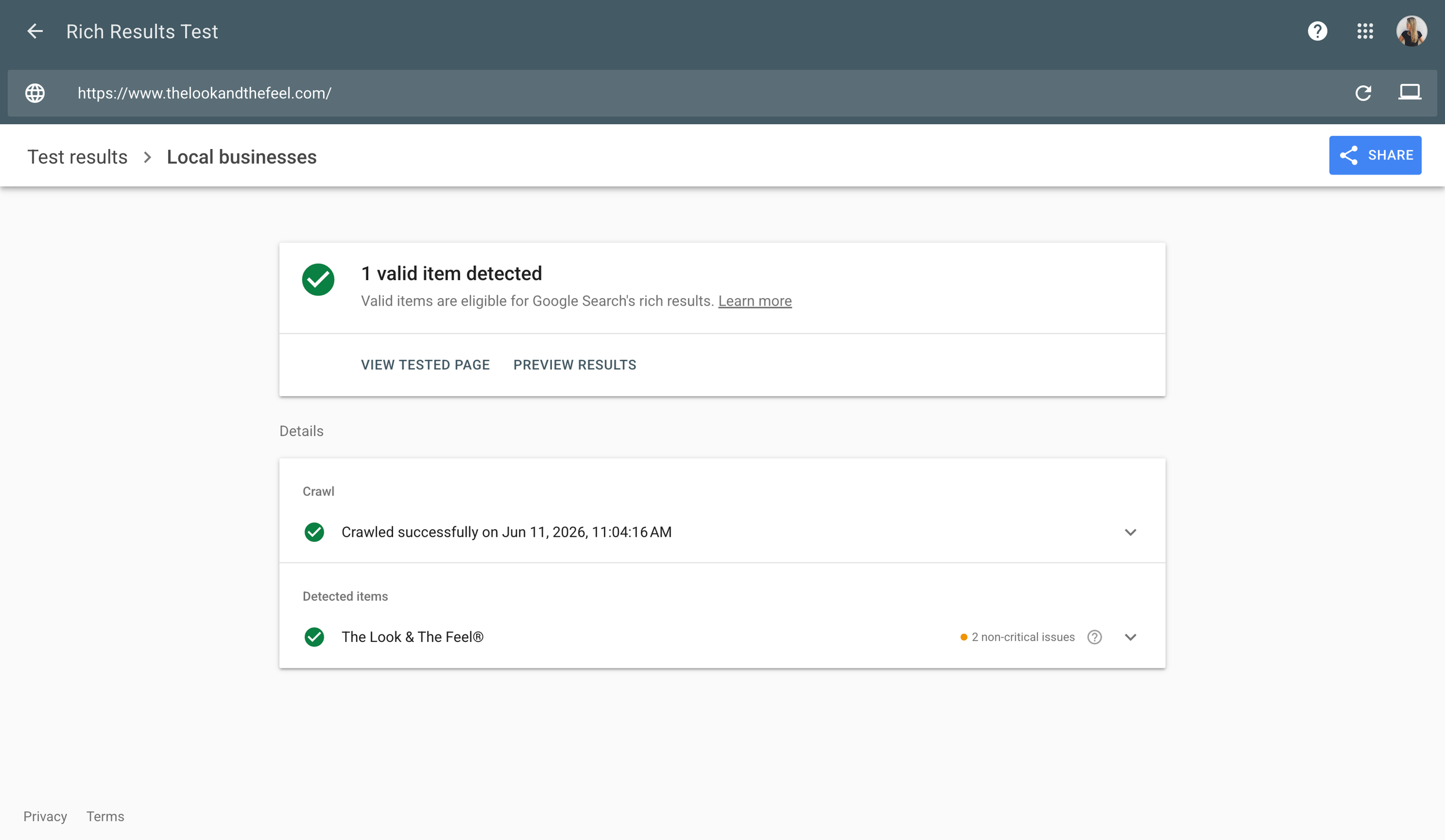
Google Rich Results Test is the one that matters most for practical purposes. Enter your website URL and it will show you what Google can read on your site. You want to see a green checkmark and "valid items detected."
Schema Markup Validator is the more technical option. It checks your code against the official schema.org specification and will catch any property-level warnings. Good for a thorough check.
A note on orange warnings: You may see some orange warning triangles when you test but don't panic. Orange means "non-critical" not "broken." Your schema is still valid and working. Red means broken. As long as you see green checkmarks and no red errors, you're in good shape.
Here's what a passing result looks like. This is The Look & The Feel's result after we added ours:
Step 4: Keep it updated
Schema only works if it's accurate. If your phone number, services, or address change, update your schema too. Outdated schema can actually create errors in Google Search Console so make sure to set a reminder to review it once or twice a year.
Bonus: What is an llms.txt file and why does it matter?
Schema tells search engines what your business is. An llms.txt file takes it a step further, it's a simple plain text document that lives at yourwebsite.com/llms.txt and tells AI crawlers specifically how to use and understand your content.
Think of it this way: if schema is your business card, llms.txt is the welcome packet. It explains what your site is about, what pages you have, what topics you cover, and how AI tools should reference your content when generating answers.
AI tools like ChatGPT, Claude, and Google's Gemini are increasingly looking for this file when they crawl websites. It's a newer standard and not every AI tool reads it yet, but it's becoming an important part of showing up in AI-generated search results and it takes about 30 minutes to set up.
Adding an llms.txt file to a Squarespace site requires a small workaround since Squarespace doesn't support plain text file uploads natively but it's still completely doable without a developer. We're working on a full step-by-step tutorial for this one and will be dropping it soon. Stay tuned.
Want this done for you?
If you'd rather skip the setup entirely and just have it handled, we offer an AI Visibility Setup that includes both your schema markup and your llms.txt file installed, tested, and verified on your Squarespace site.

AI Visibility Setup | $155
Organization and Local Business Schema markup via code injection
llms.txt file setup and URL redirect
Verified using Google Rich Results Test and httpstatus.io
Done within 2 business days
Or if you'd like a full professional review of your entire website (think: schema, SEO, messaging, design, and everything in between) that's exactly what our Website Audit covers.
Website Audit | $395 Delivered in 5-7 business days and credits toward any future work with us.